

Setting Default Apps in Windows 11:
To set default apps in Windows 11, open the Settings app (Win + I), go to Apps, and click Default apps. From there, search for your preferred application or the specific file type, for example .pdf), select it, and choose the program you want to use.
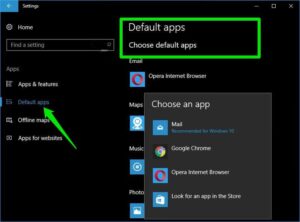
Method 1: By Application
Use this method to see all the file types and link types a specific program can handle (like making Chrome your default browser). Press Win + I to open Settings. Select Apps on the left menu. Click on Default apps. Scroll through the list or use the search bar to find the app you want to set as default, for example Spotify, Chrome, VLC. Click on the app. You will see a list of file types it is capable of opening. Click on a specific file type, choose your preferred program from the list, and click Set default.
Method 2: By File Type or Link Type
Use this method if you have a specific file extension (e.g., .pdf, .docx, .jpg) and want to assign a dedicated program to it. Go to Settings > Apps > Default apps. Click into the search bar at the top labeled Enter a file type or link type. Type the file extension (like .pdf or .mp4). Click on the correct result that appears below. Click the current default app or the + Choose a default box. Select the app you want from the list, then click Set default.
Method 3: The “Open with” Shortcut
This is the quickest way to change the default program for a single, specific file type directly from your desktop or File Explorer. Locate a file of the type you want to change (e.g., a photo or text document). Right-click the file and select Open with…. Choose your preferred app from the list. If it’s not in the list, click Choose another app. Check the box that says: “Always use this app to open [file extension] files”. Click OK.


